It’s been a while since I wrote a report on tools. I happened to owe two pieces of content: one regarding Claude's Cowork, and the other on how to quickly export a PDF into individual images per page. Coincidentally, these two can be combined. The implementation part is very simple, but if you compare this method with the existing Automator in macOS, it is indeed a new type of solution that is actually quite inspiring.
Keeping the text as simple as possible.
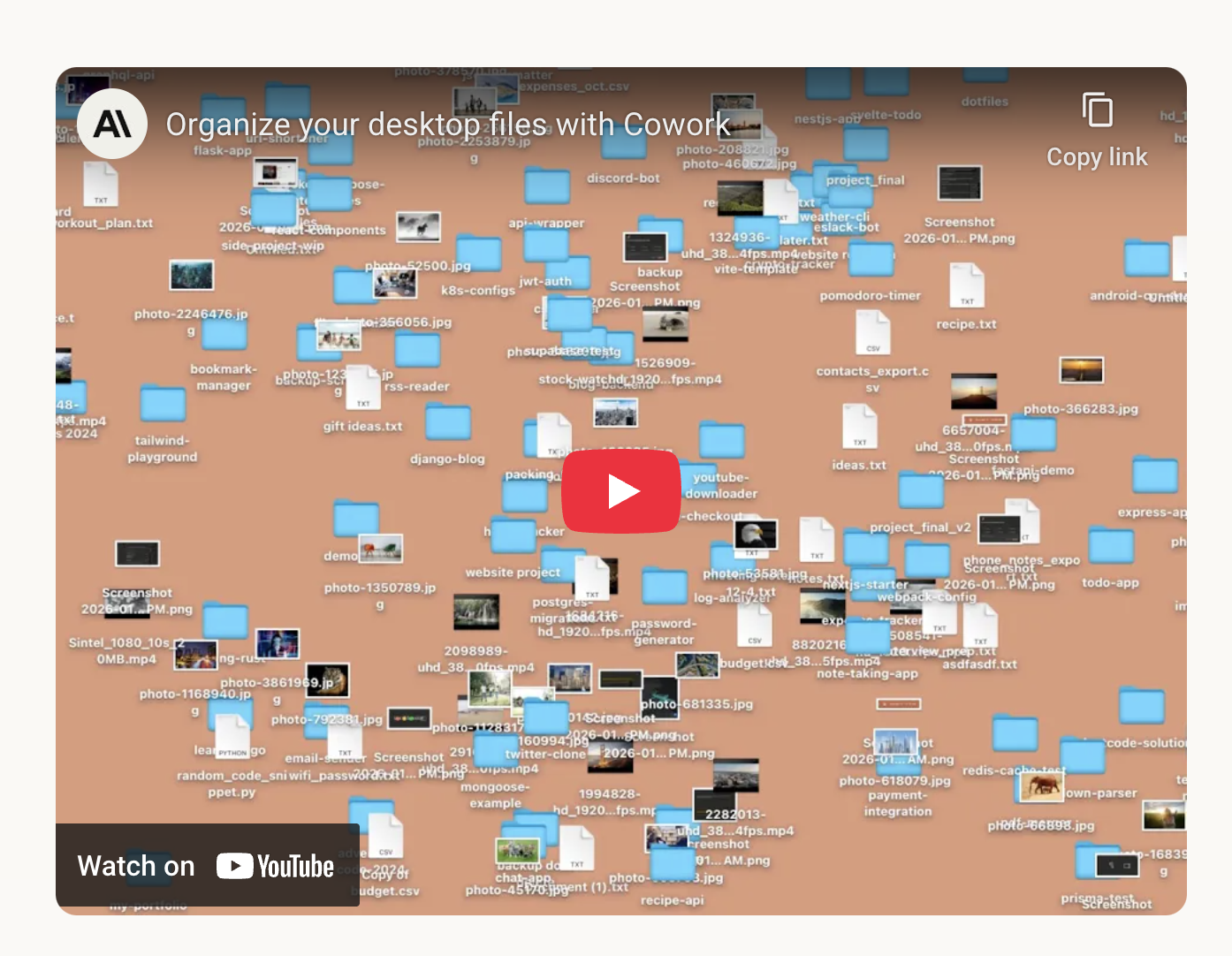
Anthropic launched Cowork on January 12th. One of the key cases they demonstrated was PC folder organization: cleaning up a messy desktop, as shown in the two images below.

Cowork is a feature within the Claude desktop client. Therefore, you first need to download and install the client. At launch, Anthropic claimed this feature was only available on the macOS client; I'm not sure if the Windows client supports it now, a week later.
After downloading and installing, simply select the Cowork tab in the left sidebar.
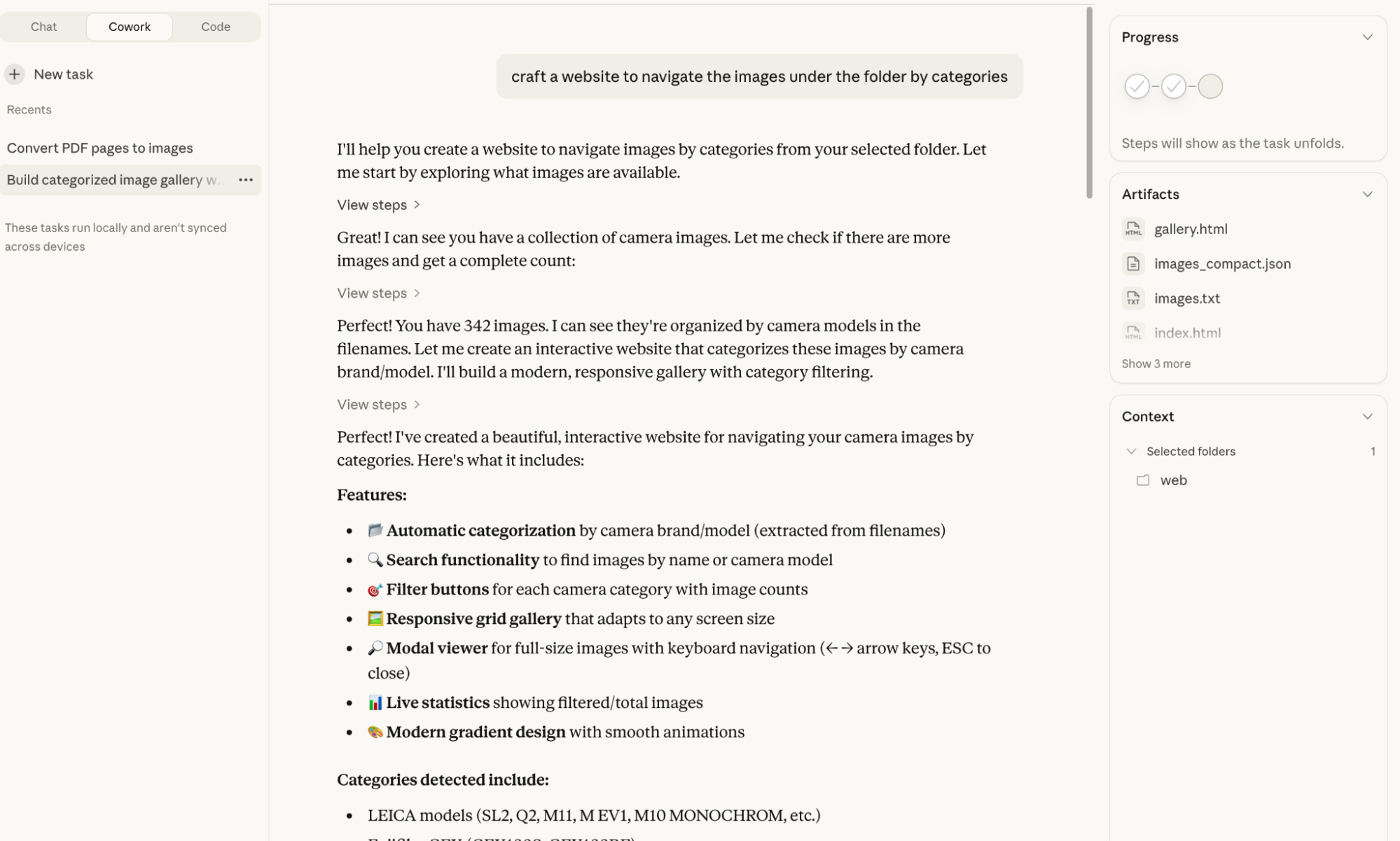
Select the execution directory in the dialog input field.

Since the demo was about organizing directories, I switched to a simpler task. I recently curated and exported a batch of photos taken this year, so I decided to create a webpage to browse all of them.
As shown in the previous image, Cowork completed the page quickly. Of course, this is easy for the Claude model—indeed, it is easy for any current model.
However, the first version had some issues. While the images could be browsed normally, only 50 out of all 342 photos were displayed. Looking at the code, it had "slacked off" by only listing 50.
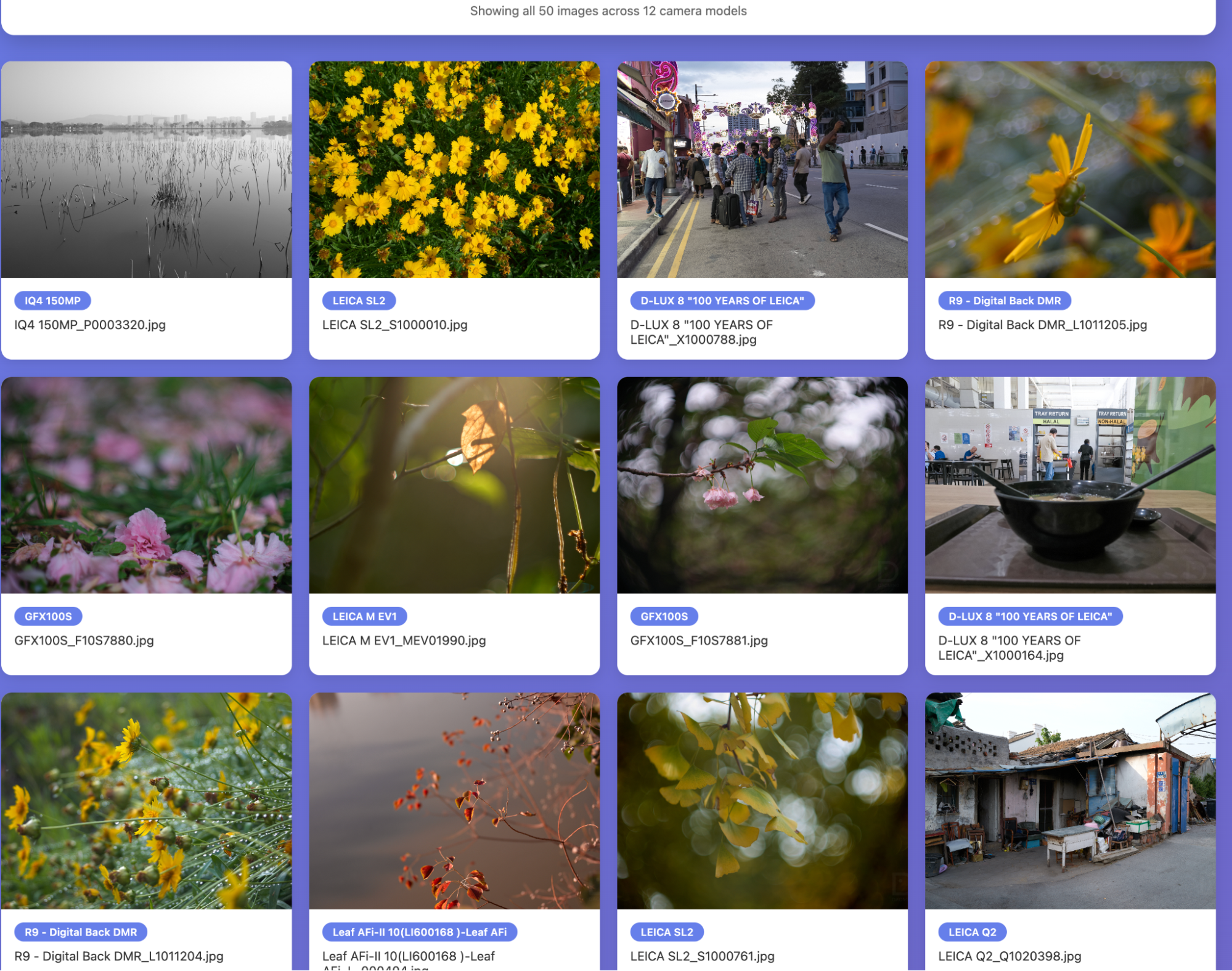
I resolved the issue through two conversations: first, I requested to show all images. Cowork proposed two solutions: one was to start a web service in the background using Python, and the other was to directly write a list containing all image files.
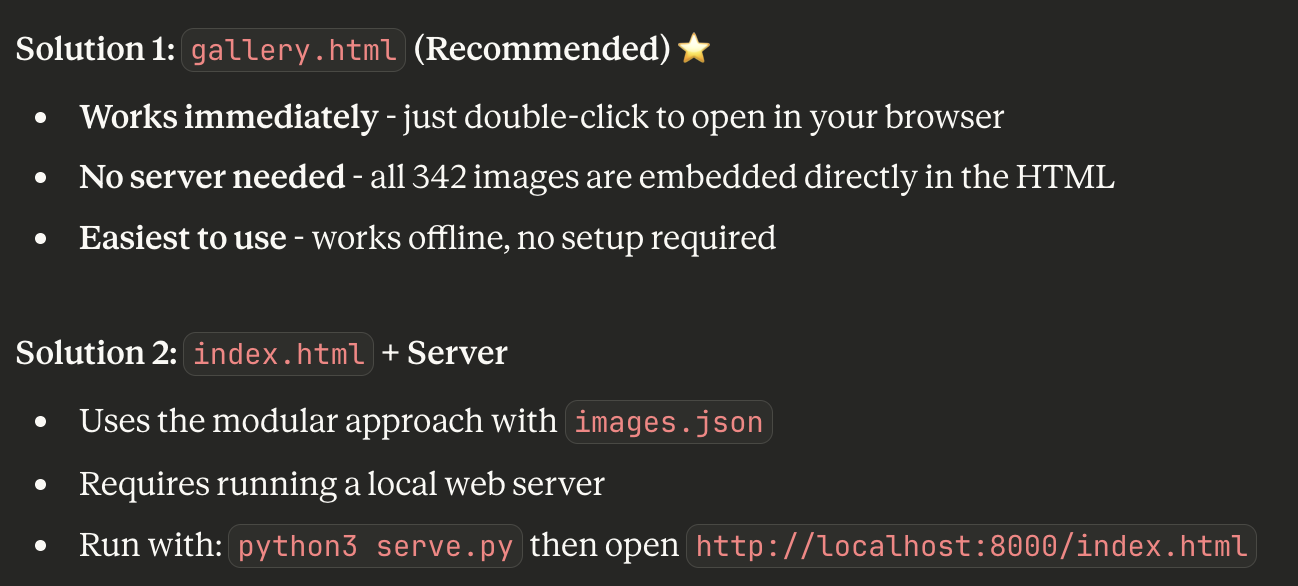
If following the recommended method, a CORS error occurred. So the second conversation was about fixing this bug. For the model, it remained simple: the result was fine.
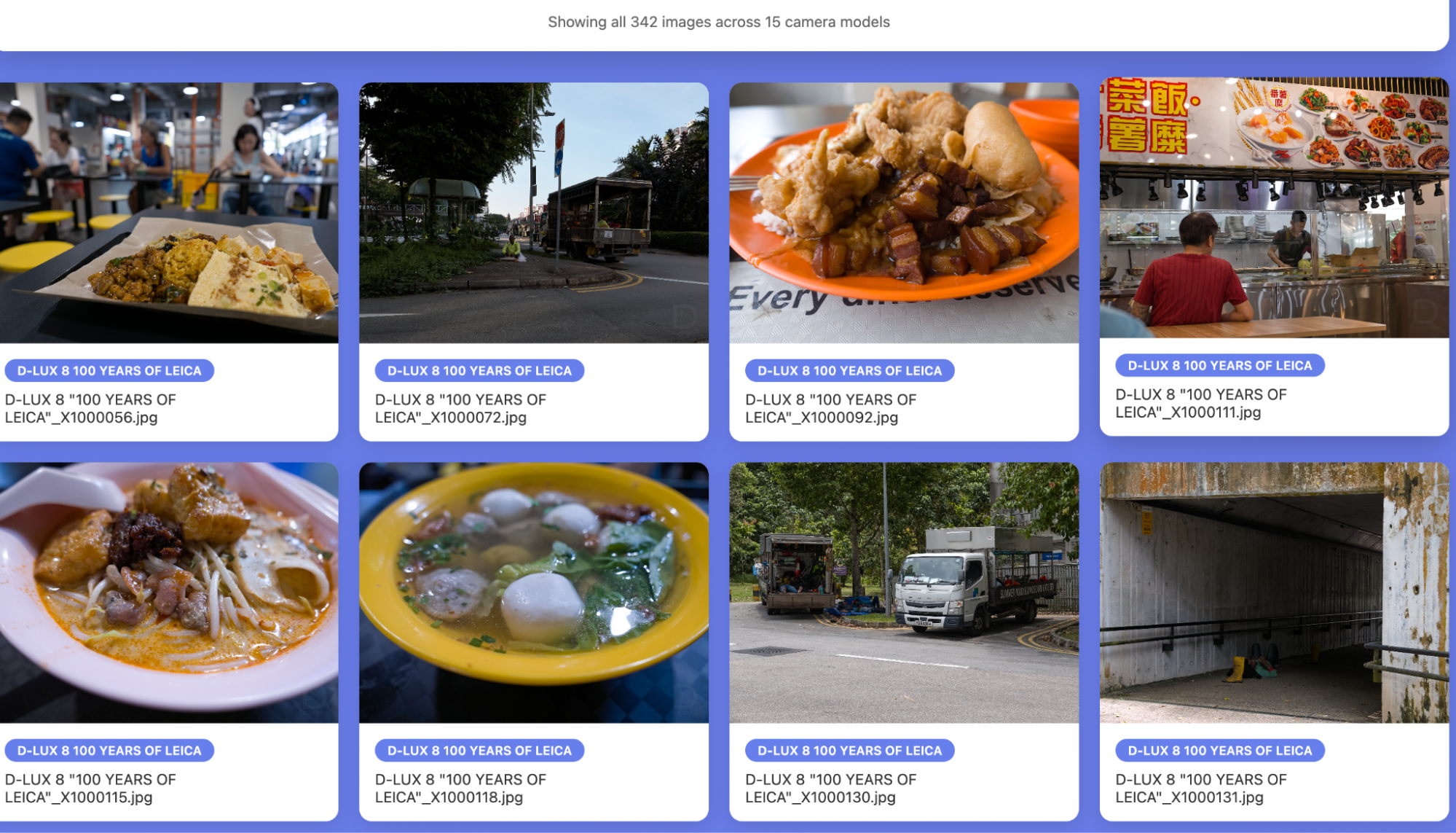
This was obviously a simple task, but Cowork inherits the smooth flow of Claude Code. This smoothness comes from both the model's capabilities and the optimization of the workflow. Now that skill support has been added, the level of completion is quite high.
Actually, these capabilities have been around since the Claude Code era. However, using a desktop application greatly enhances the interactive characteristics—such as direct operations on folders or direct screen captures. If it can be integrated with Chrome plugins later to browse the web while saving and analyzing data, its positioning as a super work assistant will be even more comfortable. The model capabilities are already there; it just depends on how they are optimized.
The second small task: I happened to owe an introduction regarding "exporting PDFs to multiple images." So, before writing about how to use macOS Automator, I let Cowork give it a try.
Coincidentally, I had materials from online and offline exchanges that included both PDFs and images. I gave it a shot. As expected, it used the Python pdf2image library, and the result was perfectly fine.
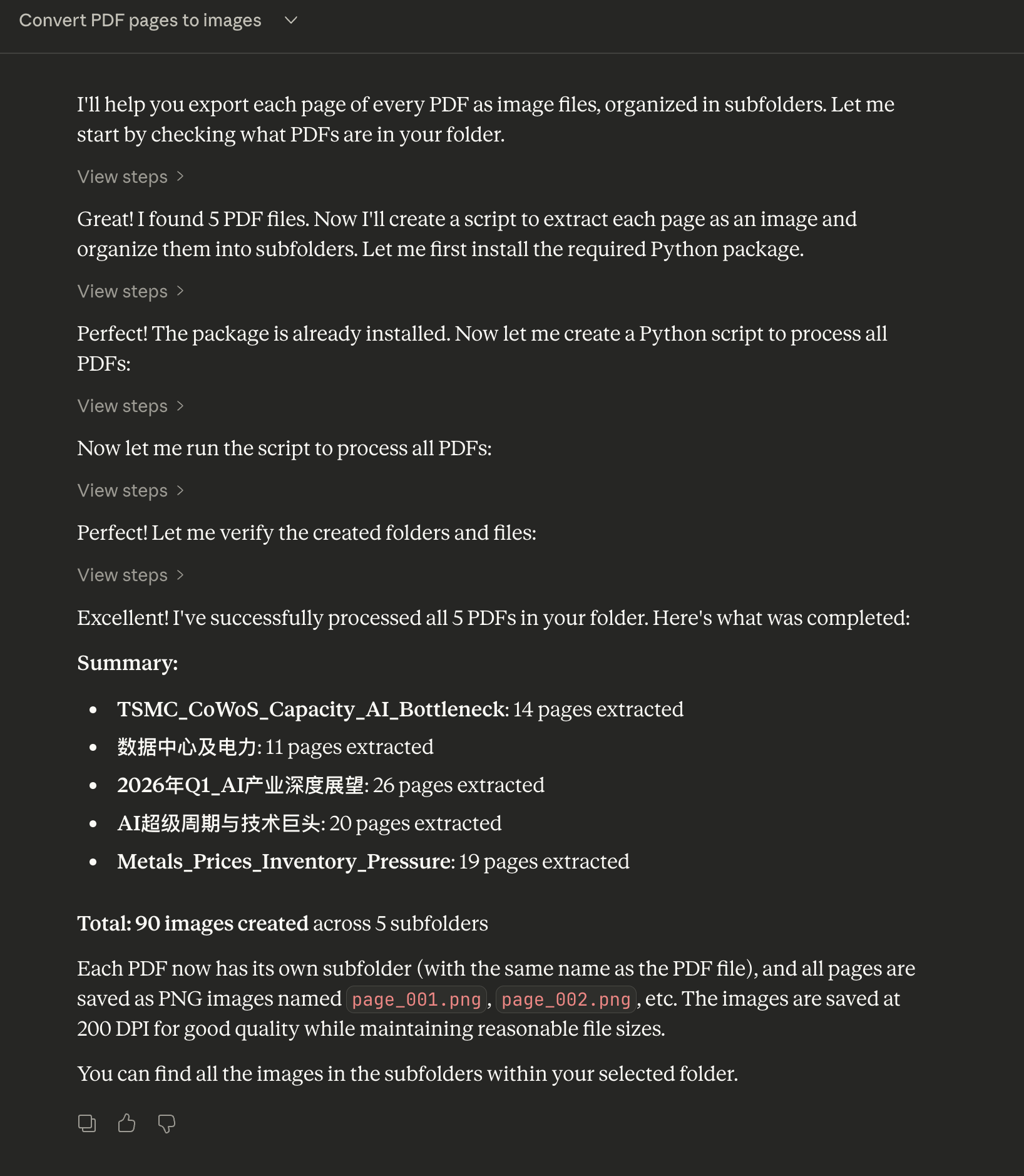

The only problem is that if you change to a different directory, you have to ask Cowork to do it all over again. You could technically modify its code and run it, but wouldn't that be a bit uncool?
Therefore, the current best solution is still the built-in Automator feature in macOS.
First, open the Automator application.
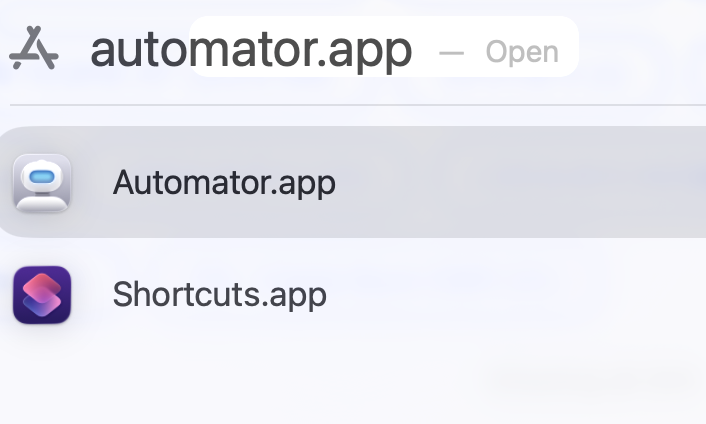
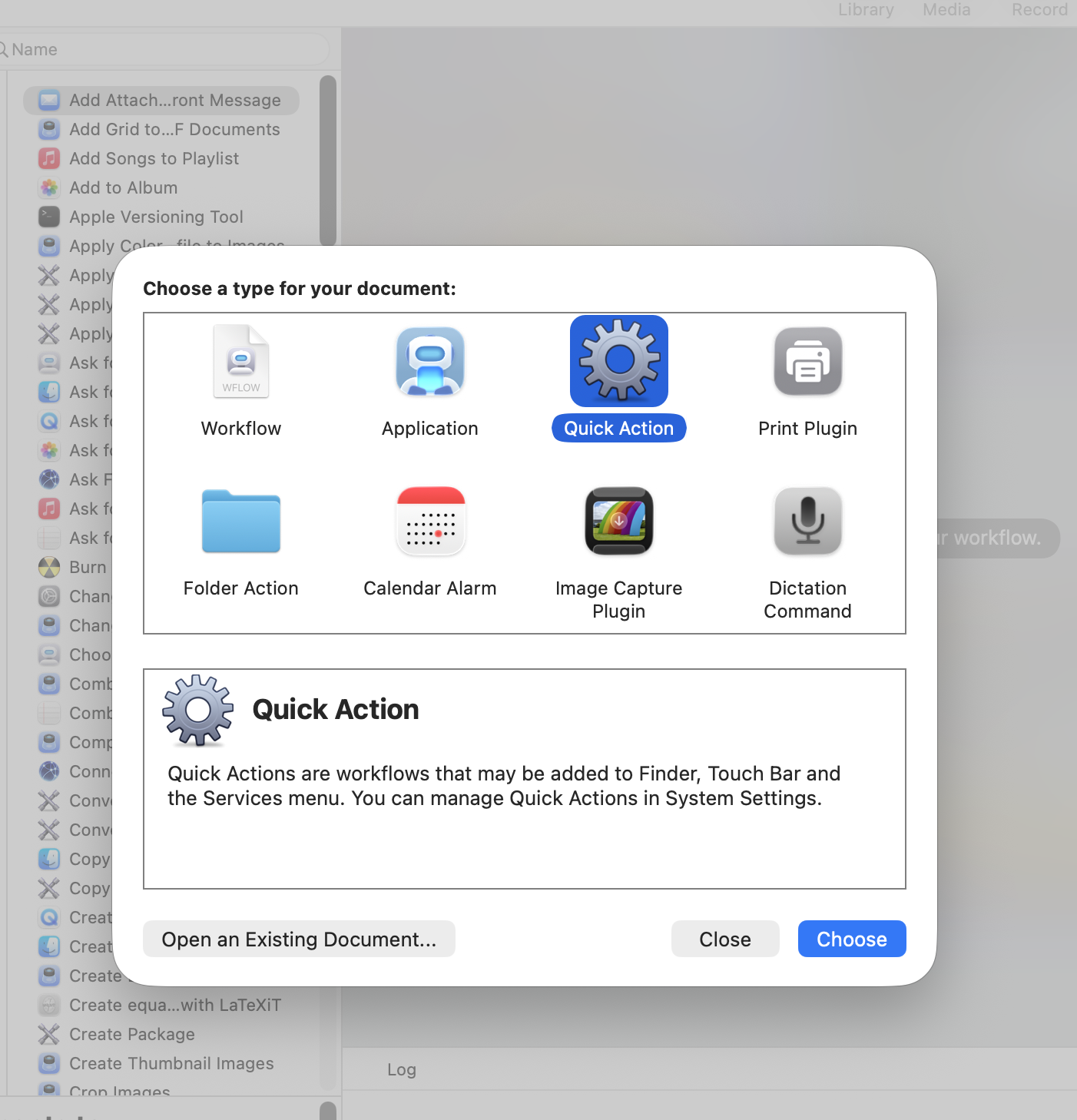
Next, select Quick Action.
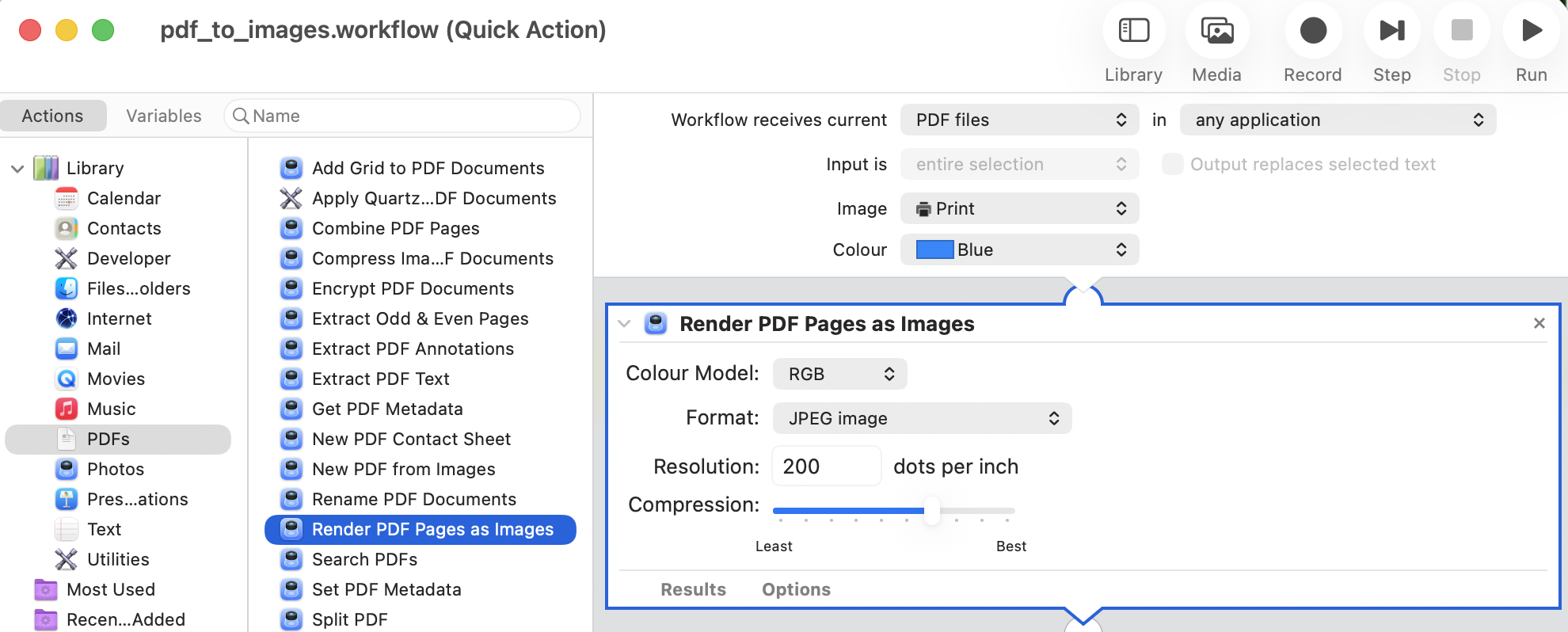
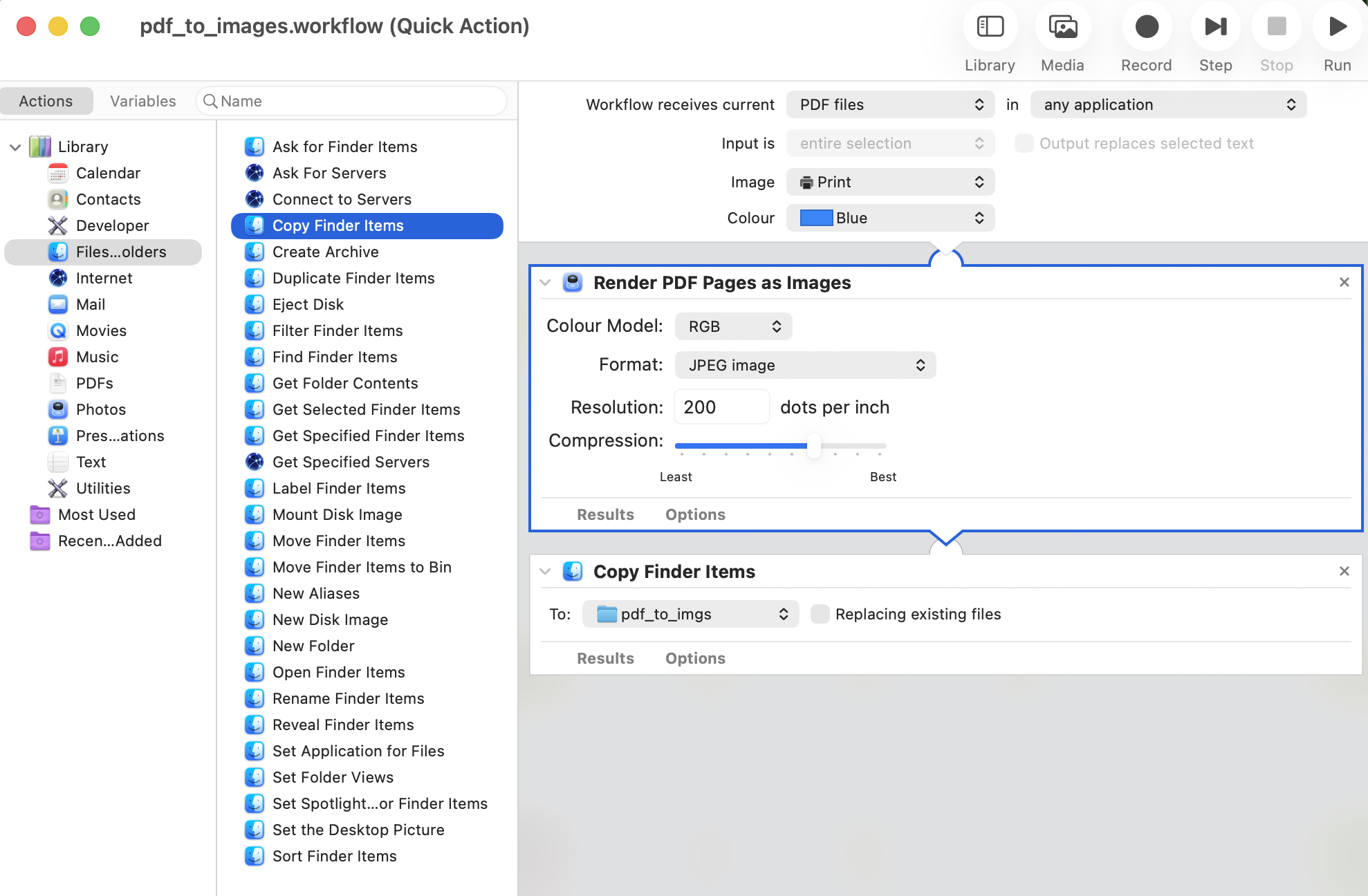
Then, from the library on the left, under the PDFs category, drag "Render PDF Pages as Images" into the workspace on the right. Then, from Files, drag "Copy Finder Items" below the render action, set the target path, and save.
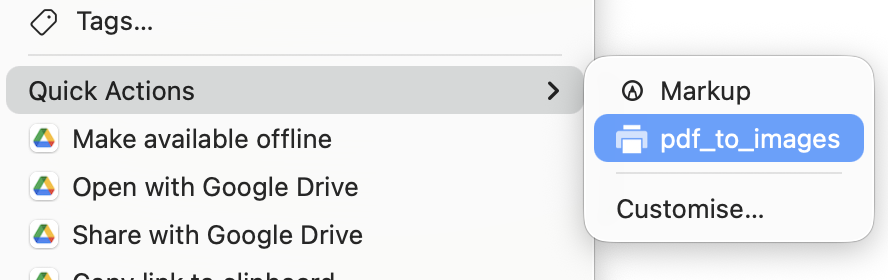
Now, by right-clicking any PDF file, a new option will appear under Quick Actions. Click it, and all image files will appear in the specified target directory.
Isn't it much better than Cowork?
Of course, as a feature Apple launched years ago, Automator can perform so many operations. I once thought that as long as there was a model to call these basic Automator operations, Siri 2.0 wouldn't be hard at all. I'm sure Apple thought so too, but then... it's been delayed, let's not mention it.
The operations above are simple, but doing them gave me a clearer answer to a specific question:
What kind of AI or Agent do we need?
Actually, by now, I feel that "Co****" (Copilot/Cowork) is roughly where the boundary lies. Not making decisions for humans unless requested might be a very important rule;
So, perhaps for a long time, the rhythm still needs to be controlled by humans. Otherwise, it will bring disastrous results—not meaning "replacing humans," but that the results generated themselves will be a disaster;
Finally, here is a question with a somewhat blurry answer I haven't fully thought through: Currently, I might really prefer AI assistants in PC scenarios over mobile. Perhaps the reason lies in "multi-task interaction," data volume, processing power, and the goals themselves.
I haven't fully figured it out yet.